Mermaid Flowchart Guide
Syntax, shapes, arrows, and copy-paste examples for Markdown
Basic Flowchart
A Mermaid flowchart starts with graph or flowchart followed by a direction. The most common directions are TD (top-down) and LR (left-to-right).
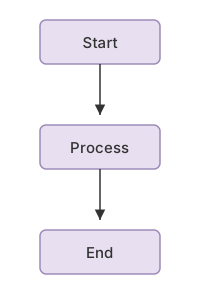
This creates three rectangular nodes connected by arrows, flowing from top to bottom.
Flow Directions
TDorTB— top to bottom (vertical, default)LR— left to right (horizontal)BT— bottom to topRL— right to left
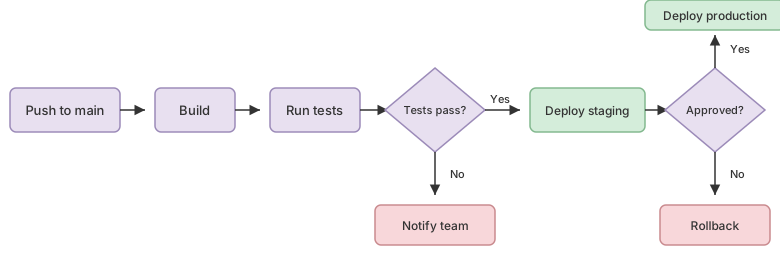
Use TD for decision trees and process flows. Use LR for pipelines, CI/CD workflows, and timelines.

Node Shapes
Different shapes convey different meanings in flowcharts:
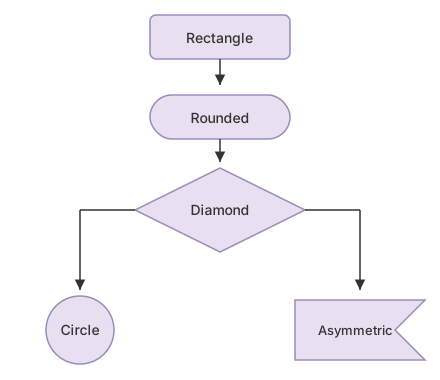
[text]— rectangle (process step)(text)— rounded rectangle (start/end){text}— diamond (decision)((text))— circle (connector)>text]— asymmetric (flag/event){{text}}— hexagon (preparation)
Arrow Types
-->— solid arrow-.->— dotted arrow==>— thick arrow---— line without arrow-->|text|— arrow with label
Decision Trees
Use diamond shapes for decisions and labeled arrows for outcomes:
Subgraphs
Group related nodes into named sections:
Subgraphs draw a labeled border around a group of nodes. They’re useful for showing system boundaries in architecture diagrams.
CI/CD Pipeline Example
A real-world example — a CI/CD pipeline with stages and decisions:
Tips
- Keep node IDs short (A, B, C) and put readable text in brackets
- Use
LRfor pipelines andTDfor decision trees - Break complex diagrams into subgraphs
- Label decision arrows with
|Yes|and|No| - Use
flowchartinstead ofgraphfor newer Mermaid features
For more Mermaid diagram types, see What Is Mermaid? and Mermaid Sequence Diagrams. If you have standalone .mmd files, see How to Open Mermaid Files on Mac.
View Flowcharts with MDViewer
MDViewer renders Mermaid flowcharts as interactive SVGs — zoom, pan, and full-screen. Paste any example from this guide into a .md file and open it.
Requires macOS 13.0 or later. Intel and Apple Silicon.